How to run python code in Visual Studio Code on Ubuntu is shown in this blog.
▼1. Let’s write python code in Visual Studio Code
In Visual Studio Code, there are many available programming languages. e.g) Java, C, C++, Python etc on Windows OS, Mac OS and Linux. in this case, I will try to use python. Python doesn’t require compile and it’s an interpreted language. Ref: Get Started Tutorial for Python in Visual Studio Code
▼2. Prerequisites
2-1. Using Ubuntu 20.04.2 LTS
Ref: https://releases.ubuntu.com/20.04/
2-2. Installing Visual Studio Code
Ref: https://code.visualstudio.com/docs/setup/linux
sudo snap install --classic code2-3. Installing Python extension
Ref: Get Started Tutorial for Python in Visual Studio Code
Confirming the installed python version
python3 --version

Python 3.8.5
2-4. Installing Python interpriter
Ref: Installation – pip documentation v21.1.3 (pypa.io)
2-5. Starting VS Code
After creating the folder “hello”, “code .” in this “hello” folder is executed.
mkdir hello
cd hello
code .
▼3. Showing Hello World using Python
3-1. Creating python code
Creating the python code “hello.py” in the folder “hello”
# hello.py
msg = "Hello World"
print(msg)
3-2. Run the Python code
There are 5 ways to run the python code.
3-2-1. Clicking the green arrow upper right
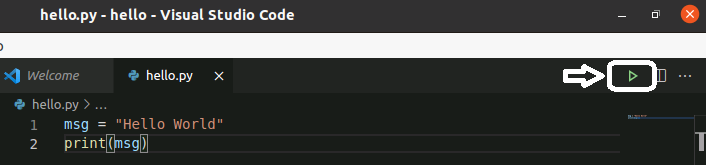
3-2-2. Clicking “Run Python file in Terminal” after right click on VS Code
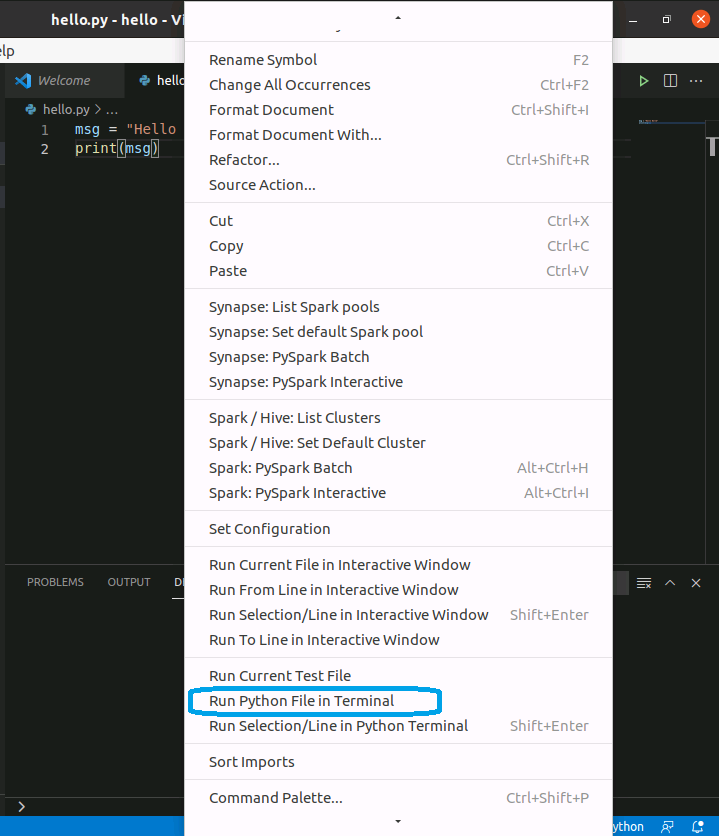
3-2-3. Pressing “SIFT” + “ENTER” key at the same time after choosing the code that we want to run
3-2-4. Pressing “CTRL” + “SHIFT” + “p” key at the same time and then choosing “Python: Start REPL”. after that, run code line by line in REPL Terminal.
3-2-5. Using Bash in Terminal
python3 hello.py

Hello World3-3. How to debug the python code
- Choosing the code that you want to debug and doing left click to show red circle for the debug
- Pressing F5 and “Select a debug configuration” is shown.
- Choosing “Python File Debug the currently active Python file”
- Doing a step execution
▼4. 参考情報
- Get Started Tutorial for Python in Visual Studio Code
- Python -Create, write and read file -VS Code on Ubuntu No.35
That’s all. Have a nice day ahead !!!