自己投資としてチャレンジしている内容を Blog で公開しています。
今回はプログラミング言語の Rust を Ubuntu の Visual Studio Code 上で試したいと思います。(In English Rust – Visual Studio Code on Ubuntu No.76)
Summary
▼1. Rust とは
高速でメモリも消費しない、メモリセーフ、スレッドセーフの言語です。そのため、パフォーマンスの要件が厳しい環境での利用に適しています。他の言語と組み合わせて利用することができます。(参考) https://www.rust-lang.org/
Rust をインストールすると、以下の toolset もインストールされます。
- Rustc : コンパイラー
- Rustfmt : ソースコードのフォーマッター
- Clippy Rust linter : VS Code 上で問題のあるコードの指摘
- Cargo Rust package manager : Rust dependencies のダウンロード、ビルド、プログラムの実行
▼2. 事前準備
2-1. Ubuntu 20.04.2 LTS の利用
https://releases.ubuntu.com/20.04/
2-2. Visual Studio Code のインストール
https://code.visualstudio.com/docs/setup/linux
sudo snap install --classic code2-3. Rust のインストール
コマンドで Rust をインストールします。(参考) https://www.rust-lang.org/learn/get-started
// Ubuntu の環境
curl --proto '=https' --tlsv1.2 -sSf https://sh.rustup.rs | sh

// 環境変数の反映
source .bashrc

// rustc のバージョン確認
rustc --version

(出力)
rustc 1.65.0 (897e37553 2022-11-02)

// installing up to date with the latest version by running
rustup update

(出力)
info: syncing channel updates for 'stable-x86_64-unknown-linux-gnu'
info: checking for self-updates

  stable-x86_64-unknown-linux-gnu unchanged - rustc 1.65.0 (897e37553 2022-11-02)

info: cleaning up downloads & tmp directories2-4. rust-analyzer Extension のインストール
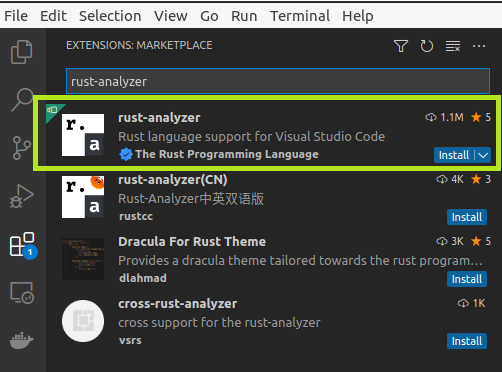
▼3. Hello World の実行
3-1. Hello World を表示する Rust のコードを作成
Cargo コマンドを使い、プロジェクト一式を作成します。依存ファイルは cargo.toml となります。
cargo new hello_world
     Created binary (application) `hello_world` package
3-2. Visual Studio Code を起動
code .3-3. main.rs ファイルを開きコードを確認
cat ./src/main.rs

fn main() {
    println!("Hello, world!");
3-4. Cargo ビルド
terminal の起動 (Ctrl+Shift+`) もしくは Terminal メニューから New Terminal を選択
cargo build

   Compiling hello_world v0.1.0 (/home/ubuntu20/hello_world)
Finished dev [unoptimized + debuginfo] target(s) in 0.51s3-5. コードを実行
cargo run

    Finished dev [unoptimized + debuginfo] target(s) in 0.00s
     Running `target/debug/hello_world`
Hello, world!
もしくは
./target/debug/hello_world
Hello, world!
▼4. 参考情報
以上です。参考になりましたら幸いです。